 Hardware Ready Ready to Bench?
If your Windows 11 PC does not shut down correctly and, after selecting “Shut down”, the screen goes black but the fans continue to spin, the first thing to rule out is that updates are in progress. Subsequently, compare a normal shutdown with Shift + Shut down, try disabling only Fast Startup, and verify system behavior without peripherals or docks connected.
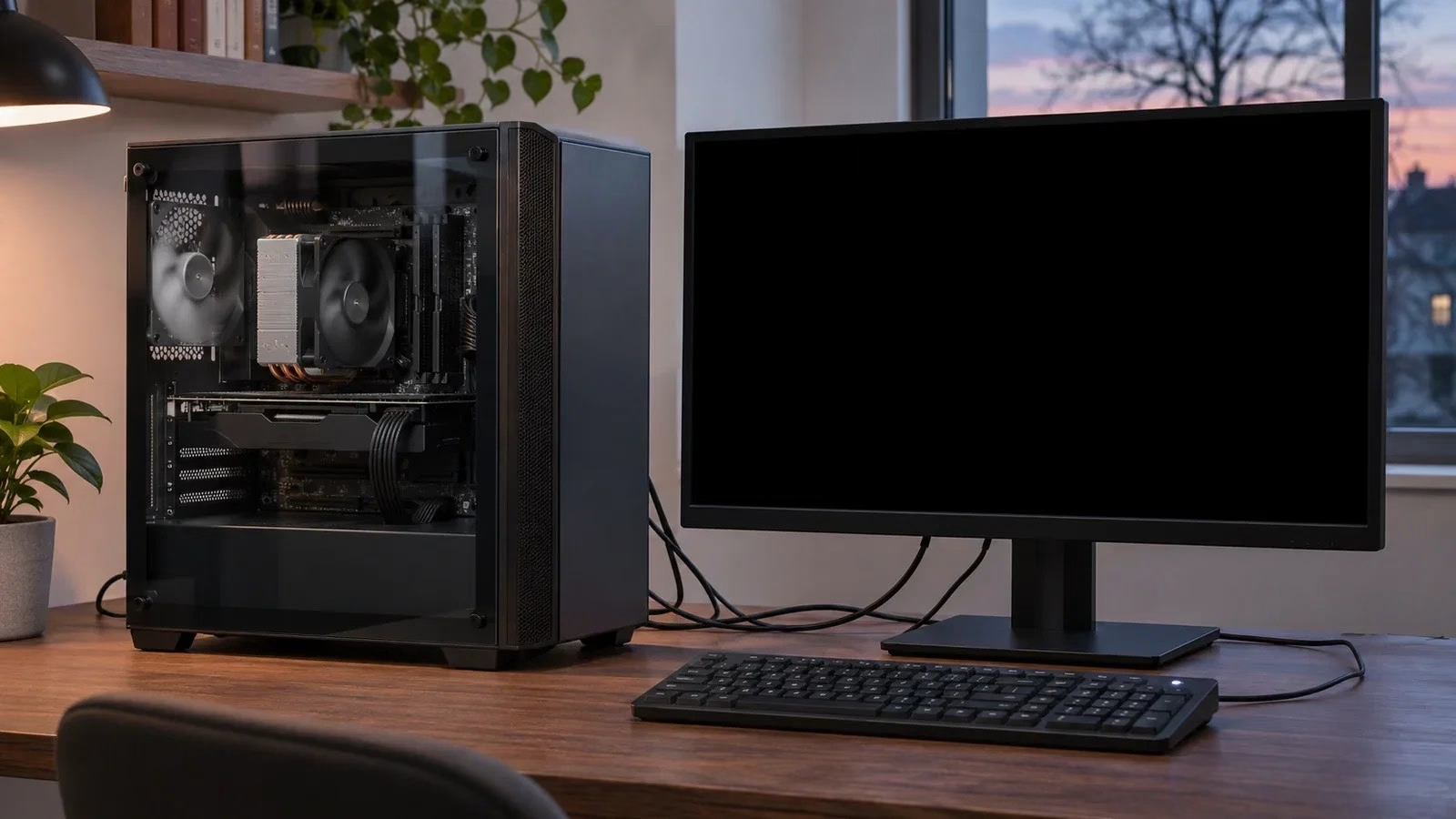
It is important to change only one condition at a time: the result obtained will help identify the element causing the hang. The presence of an illuminated mouse or USB ports still powered on, by themselves, do not necessarily indicate a shutdown failure.
Windows 11 shutdown issue: why it matters
Black screen and fans running: recognizing the symptom
Start with the correct command: open Start, select the power button, and choose Shut down. Closing a laptop lid or briefly pressing the physical button may initiate sleep, depending on the configuration.
Carefully observe what happens after the video signal disappears: do the fans remain running, or do they stop and only some lights stay on? A brief final phase is not sufficient to diagnose a fault; count on persistent and repeatable behavior, comparing it with the PC manufacturer’s guidelines.
Before proceeding with tests, save your documents, close applications, and check Settings > Windows Update. Complete any requested updates and restarts, keeping the notebook connected to power: there is no universal maximum time after which you should interrupt everything.
If a shutdown screen still appears, checks on updates and apps blocking Windows 11 shutdown help distinguish this case from an already black screen. Do not disconnect power during a firmware update, even if the display temporarily darkens.
Comparing Shut down with Shift + Shut down
Perform the comparison when you can use the desktop normally, initially maintaining the same peripheral configuration. After saving your work, open Start and the power menu; hold down Shift while clicking Shut down.
This combination requires a complete shutdown, avoiding the Fast Startup path for that single operation. Observe if the fans stop and the PC reaches its normal off state. At the next startup, then verify the behavior of the ordinary command.
Note the two outcomes separately, without changing hubs, drivers, or BIOS settings in the meantime. If Shift + Shut down works and the normal shutdown continues to hang, you have a clue about the hybrid path: you have not yet demonstrated that a specific peripheral is defective. If both fail, proceed anyway with the test without accessories.
A successful Restart is also useful information because it recreates the system state, but it does not certify that the subsequent shutdown will work: the computer must still complete its transition to the off state.
Disabling only Fast Startup
Fast Startup closes user sessions and saves the kernel and driver state in the hibernation file to accelerate the next startup. It is not equivalent to hibernating the work session, which also preserves open applications.
The expected result remains a computer that appears off: the feature does not justify, by itself, fans spinning without stopping. To verify its involvement, use the Control Panel checkbox, leaving other power settings intact and noting the initial value.
Search for and open Control Panel from the Start menu. With category view, enter Hardware and Sound, then Power Options. Open Choose what the power buttons do in the side column. Select Change settings that are currently unavailable and authorize the change if requested.
Uncheck Turn on fast startup (recommended), then press Save changes. Now perform a normal Shut down, without Shift, and verify the outcome in subsequent comparable sessions.
Changing only the checkbox does not disable already available hibernation: you can continue to use it separately. If shutdown becomes reliable, you can keep Fast Startup disabled, accepting a possible increase in startup time. If nothing changes, note it: before the peripheral test, you can restore the initial setting so as not to attribute a potential improvement to two simultaneous changes.
If the checkbox is missing, check hibernation
If Turn on fast startup does not appear, do not immediately look for a registry change. Open Terminal from the Start menu and run powercfg /a: the command lists available power-saving states and can indicate why some are not. Use it to read the configuration, not as an automatic proof of the cause of the hang.
On a corporate PC, management policies may also intervene: if an entry is bound by the administrator, report the test results to internal support before modifying it with other tools.
The command powercfg /hibernate off, often suggested in generic solutions, disables hibernation and makes Fast Startup unavailable as well. It is therefore not equivalent to unchecking the box: it changes two usage possibilities and prevents keeping hibernation available. For this diagnosis, there is no need to run it.
If hibernation is already disabled and Fast Startup is not available, record this condition and move on to peripherals: it makes no sense to reactivate an absent feature only to disable it again, nor does its state demonstrate a disk fault.
Testing without USB, receivers, and external drives
Prepare the minimal configuration before requesting shutdown, while Windows still responds. Finish copies and backups, safely eject removable units, and disconnect external drives, printers, webcams, audio interfaces, card readers, and unnecessary wireless receivers.
On a laptop, use the integrated keyboard and touchpad; on a desktop, keep the tools necessary to issue the command. Maintain the essential video connection and computer power. The goal is to compare behavior without accessories, not to unplug cables randomly while the system is closing.
If shutdown succeeds this way, reconnect peripherals one by one, returning each time to a Windows session and repeating the same command. Note the device, port, and presence of any hub: a webcam that works directly on the PC but coincides with the hang through a hub suggests investigating that combination.
A single positive outcome is not enough to condemn the accessory; look for repeatable behavior. If the defect returns with a specific device, verify drivers, firmware, and compatibility indicated by its manufacturer. To temporarily replace a mouse with a receiver or connected to the dock, a wired Logitech M100 allows a test via direct USB connection to the computer.
This serves to eliminate the receiver and hub from the configuration while maintaining pointer control; it does not repair shutdown and remains a USB peripheral anyway. Use it if you have a compatible free port, preferably borrowing an available mouse before purchasing one. On a notebook, the integrated touchpad normally makes even this addition to the minimal configuration superfluous.
Isolating the dock while maintaining a video connection
A dock can combine monitor, network, audio, USB, and power in a single cable: disconnecting it changes several conditions at once. Therefore, start with the test without the dock, then gradually rebuild the configuration.
On a notebook, initially use the integrated display and, if needed, the compatible power adapter connected directly; on a desktop, keep a monitor connected to the appropriate video output. If the PC shuts down regularly only without the dock, you have narrowed the investigation to the dock and its connections, but you have not yet identified the responsible component.
If you must maintain an HDMI monitor and the computer offers only a suitable USB-C port, a TP-Link UA520C allows connecting it while avoiding the multifunction dock. However, the USB-C video port must support DisplayPort Alt Mode output: the connector shape alone does not guarantee compatibility. A suitable HDMI cable is also required, and resolution and frequency depend on the entire chain.
This is an option for a more targeted comparison, not a cure for the hang; if you already have a usable HDMI or DisplayPort output, use that without purchasing an adapter.
When only USB LEDs remain lit
If the fans stop and mouse, keyboard, or accessories remain illuminated, do not automatically consider the shutdown failed. Some motherboards keep USB powered for charging or other functions provided by firmware: USB LEDs indicate power, not necessarily Windows still running.
Check the model manual for charge-while-off or ErP options. Availability and effects vary: disabling standby power may also limit charging and wake-up functions. Do not apply a BIOS path found for a different board.
This check serves to clarify residual lights, not to automatically correct always-active fans. If the notebook shuts down regularly but loses charge overnight, the verification instead concerns laptop consumption when off and powered USB peripherals.
If the fans stop and then restart with the startup logo, note a reboot: this is a different symptom from continuous shutdown failure. This distinction avoids modifying wake-up settings when the PC has never concluded the shutdown.
If the hang continues even in minimal configuration
If both Shift + Shut down and normal shutdown without accessories fail, stop purchasing for trial-and-error. Collect the PC or motherboard model, Windows version, time of problem appearance, and comparison outcomes.
Verify relevant Windows and driver updates through manufacturer channels, testing again after each intervention. For BIOS and firmware, follow only the procedure provided for the model; an update may be pertinent, but it is not a guaranteed fix.
If the defect persists, provide this information to support.
Source and further reading on Windows 11 shutdown issue: original article.
* Content created with the assistance of artificial intelligence systems.