 Hardware Ready Ready to Bench?
If a Windows 11 PC is not reading an SD card, the first step is to try another USB port and a compatible reader you already have available. Subsequently, it is necessary to check support in Disk Management.
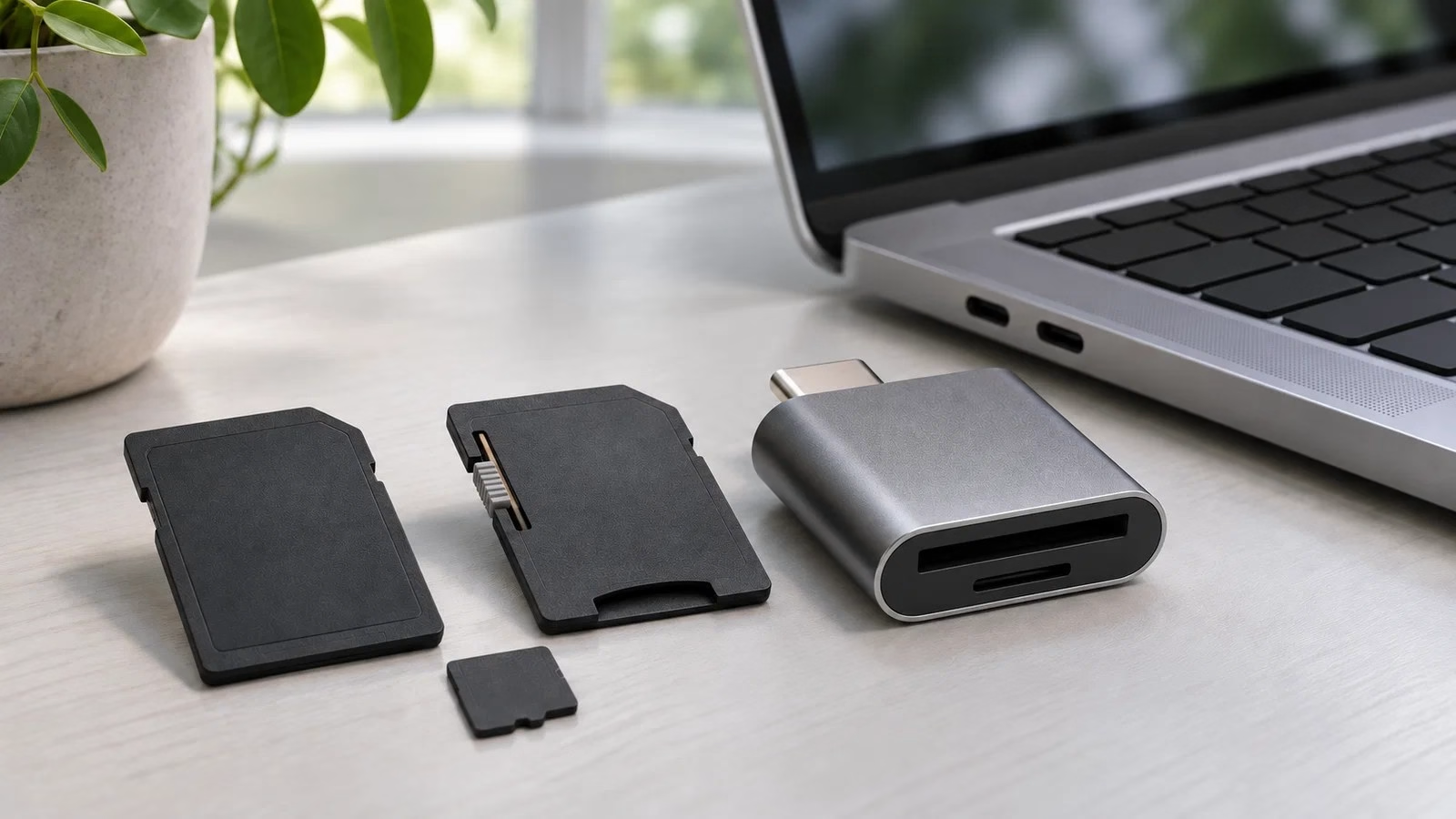
The fundamental distinction is between an undetected card, a present but inaccessible volume, and readable files that cannot be modified. In the first two cases, verify the connection, compatibility, and file system; in the last case, write protection (LOCK) also comes into play.
SD card: why it matters
If Windows prompts for formatting and the data is important, it is crucial to cancel the operation: making the card usable again and recovering its files are distinct objectives.
Start with USB Port, Insertion, and Cross-Tests
Close any programs using the card and eject it, if Windows allows, before removing it. Check, without forcing, that the SD card and adapter do not have cracks, damaged contacts, or loose parts; reinsert the microSD fully into the adapter and the adapter into the reader.
If you are using a USB hub or docking station, connect the reader directly to a computer USB port, then try another port. The Windows connection sound signals that a USB device has been detected, but it does not confirm that the reader has recognized the inserted memory.
Initially use what you own or can borrow: a second reader, another microSD-SD adapter, and finally, another PC. Change only one element at a time, noting where the card is recognized and where it is not.
If a microSD works in the direct slot but not through the SD adapter, suspicion focuses on the adapter or the SD slot. If it works with an external reader but not the built-in one, verify the compatibility and drivers of the built-in reader before considering the card faulty.
A second known-working card helps complete the comparison, provided it belongs to the same standard and has a capacity supported by the reader. An old SD card of a few gigabytes that works does not prove that the same slot is capable of reading an SDXC.
If the problematic card is recognized on another computer, immediately copy important files to that PC before continuing tests. Avoid taking new photos or saving documents to the memory during diagnosis: adding data does not help understand why the first computer cannot read it.
Check SDHC and SDXC Before File System
The shape of the slot alone does not guarantee SDXC support. According to SD Association standards, SD cards go up to 2 GB, SDHC exceeds 2 GB up to 32 GB, while SDXC exceeds 32 GB up to 2 TB; this distinction also applies to their respective microSDs.
A reader declared only compatible with SDHC does not offer a guarantee of compatibility with SDXC. Look in the notebook or reader manual for the supported standard and any capacity limits: the simple label “SD reader” may be too generic.
A microSDXC inserted into a large adapter remains a microSDXC: the adapter changes the physical connection, but it does not upgrade the reader. For this reason, formatting a 128 GB card in FAT32 is not a reliable solution to resolve slot incompatibility issues.
If the same memory works in an SDXC reader, focus checks on the old reader. When the problem concerns only the built-in reader, check for any errors in Device Manager and dedicated updates provided by the manufacturer for your PC model; avoid driver packages chosen solely based on name similarity.
In Disk Management Verify Capacity, Volume, and Letter
Right-click Start and open Disk Management; alternatively press Windows + R, type diskmgmt.msc, and confirm. Identify the drive by comparing capacity and presence before and after connection, without relying solely on the number “Disk 1” or “Disk 2”. If an initialization request appears for a card that contained files, cancel it.
The lower view shows the device and its partitions, while the upper list helps read the letter and file system of volumes: observing this information does not require formatting.
First check that there is a correct capacity, keeping in mind that Windows may show a value lower than the commercial one due to different unit counting. A 64 GB card displayed around 59.6 GB is not, for this reason alone, defective.
“No Media” or 0 bytes with the card inserted instead indicate that the reader is not exposing usable memory: return to tests with compatible readers and adapters. If the card is missing here too, assigning letters or repairing the file system is not yet the relevant step.
The Volume Is Present but Has No Letter
If you find the expected volume, with plausible capacity and recognized file system, verify the drive letter: without a letter it may not appear in This PC. Right-click on the card’s volume, choose “Change Drive Letter and Paths”, then “Add” and assign a free letter. Confirm and reopen File Explorer; this operation does not require formatting.
If the command is disabled, the volume is RAW or the space appears unallocated: do not create a new partition to make a letter appear, but first understand what happened to the data.
The Card Appears But Will Not Open: Interpret the Message
A visible letter does not guarantee that the file system is readable. Note the exact message: “Insert Disk” refers to memory unavailable through that connection, while a formatting request requires attention to the volume.
If Disk Management indicates FAT32, exFAT, or NTFS, Windows recognizes at least that type of file system, but this does not certify file integrity. The differences between FAT32, NTFS, and exFAT explain format features and limits; they do not justify a conversion while trying to recover access.
If you read RAW or Windows asks to format, the rule is not to format when files are needed. RAW means that Windows does not recognize a usable file system on that volume, not that the card is definitely empty or permanently broken. Even “Unallocated” on previously used memory requires stopping before creating volumes.
Repeat only the comparison with a definitely compatible connection; if the outcome remains the same, move from ordinary diagnosis to a data recovery path, commensurate with the value of the contents. Do not start CHKDSK with repair options as an initial attempt, tools that reconstruct partitions or the “Scan and Fix” function before securing the data. These operations can write to the card; they are not equivalent to consulting Disk Management.
If the drive is recognized stably and with plausible capacity, software recovery can be evaluated by preferably working on an image of the memory and saving results to another unit. If disconnections, repeated errors, or anomalous capacity appear even with other readers, stop attempts and evaluate specialized assistance for irreplaceable files.
LOCK Concerns Writing, Not File Appearance
If you can open photos and folders but cannot save, rename, or delete, you are facing write protection, not a read failure. The LOCK switch on SD cards and microSD-SD adapters signals the reader to prevent modifications; normally it does not prevent consulting or copying files to the PC.
Eject the card after removal and check the position indicated on the adapter, moving the switch from the opposite side to LOCK. A loose switch can move during insertion: do not force it and do not improvise repairs inside the slot.
The microSD does not have that switch: the adapter lock applies while the memory is inserted inside it. Try it in the microSD slot of an available reader or with another adapter, after copying readable files.
If read-only persists through different paths, LOCK alone is not enough to explain the problem: the cause may concern the card or other system restrictions. If instead the device is completely missing from Disk Management, continue searching for the problem in hardware recognition; moving LOCK does not constitute a solution to that symptom.
When It Makes Sense to Replace an Accessory
SD card. If you cannot borrow a reader and must rule out the built-in one, the TP-Link UA430C offers SD and microSD slots with SDXC support and USB-C connection. It is a coherent choice if your PC has an available data-capable USB-C port: the microSD slot also allows testing the memory without the SD adapter.
Check connector and supported capacity before choosing it. It serves to change the reading path and can replace an incompatible or defective reader, but it does not repair a RAW volume and does not guarantee file recovery.
A microSD-SD adapter to isolate contacts and switch If the SD reader works and cross-testing indicates the adapter, a replacement microSD-SD like those in the LBQUTN package allows replacing that single element. Verify that it is an adapter for microSDHC or microSDXC and that the switch is intact: do not confuse it with miniSD or Memory Stick adapters, intended for different formats.
This choice makes sense for defective contacts or casing and for an unreliable LOCK mechanism. It does not add SDXC compatibility to an old reader and does not recover data from a damaged microSD.
When You Regain Access, Save Files First
As soon as the card opens, copy contents to another unit, starting with irreplaceable ones, and check that copied files open. Only after a verified backup, or if the data is not important, consider formatting according to the instructions of the device where you will use the memory: for example, the camera.
FAT32 is the format normally expected for SDHC, exFAT for SDXC; changing format does not correct hardware incompatibility. If errors or disconnections reappear with different readers, do not entrust the card as the only copy of upcoming shots.
Frequently Asked Questions
Why does the card work in the camera but not on Windows 11? The result shows that the camera can access memory through its own reader, but it does not identify by itself the faulty component on the PC. Check SDXC standard, USB port, and adapter with cross-tests.
If the camera allows transfer via USB, you can use that path to immediately copy files to the computer. Cancel any formatting requests: the fact that the camera reads the card makes preserving its content even more important.
Can a write-protected microSD be copied to the PC? Generally yes: protection prevents modifications on the card, while copying from the card to the PC disk remains possible. Use “Copy”, avoiding “Cut”, so you do not also request deletion of originals.
If even copying fails, note the error: a read message or disconnection is not explained solely by LOCK. Verify transferred files before trying another adapter or intervening on protection.
Does formatting a RAW card bring back photos and documents? No: formatting prepares a file system and can make a still-functioning drive usable again, but it is not a recovery procedure. It may compromise the recovery of previous contents, so it should be postponed if those files are needed.
Keep the two objectives separate: first recover to another unit what can be saved, then evaluate reusing the card. If memory is not detected correctly, formatting does not necessarily resolve the fault.
Source and further reading on SD card: original article.
* Content created with the assistance of artificial intelligence systems.